Use Sarvam AI as Your Model
Add the built-in Sarvam AI provider, then chat with an agent in Tamil or another Indian language. Sarvam models are built for Indian languages. You paste your key and pick a model. AgentZ fills in the URL and the authentication.
What You Need
- A Ready workspace. See Create a workspace.
- A Sarvam AI API key from sarvam.ai.
Note
Sarvam AI handles text only in AgentZ. To read images or scanned PDF pages, add a second model as the Attachment model. See Inference providers.
Add the Sarvam AI Provider
- In the workspace sidebar, open Workspace settings → Inference → Inference providers. The page Inference providers opens.
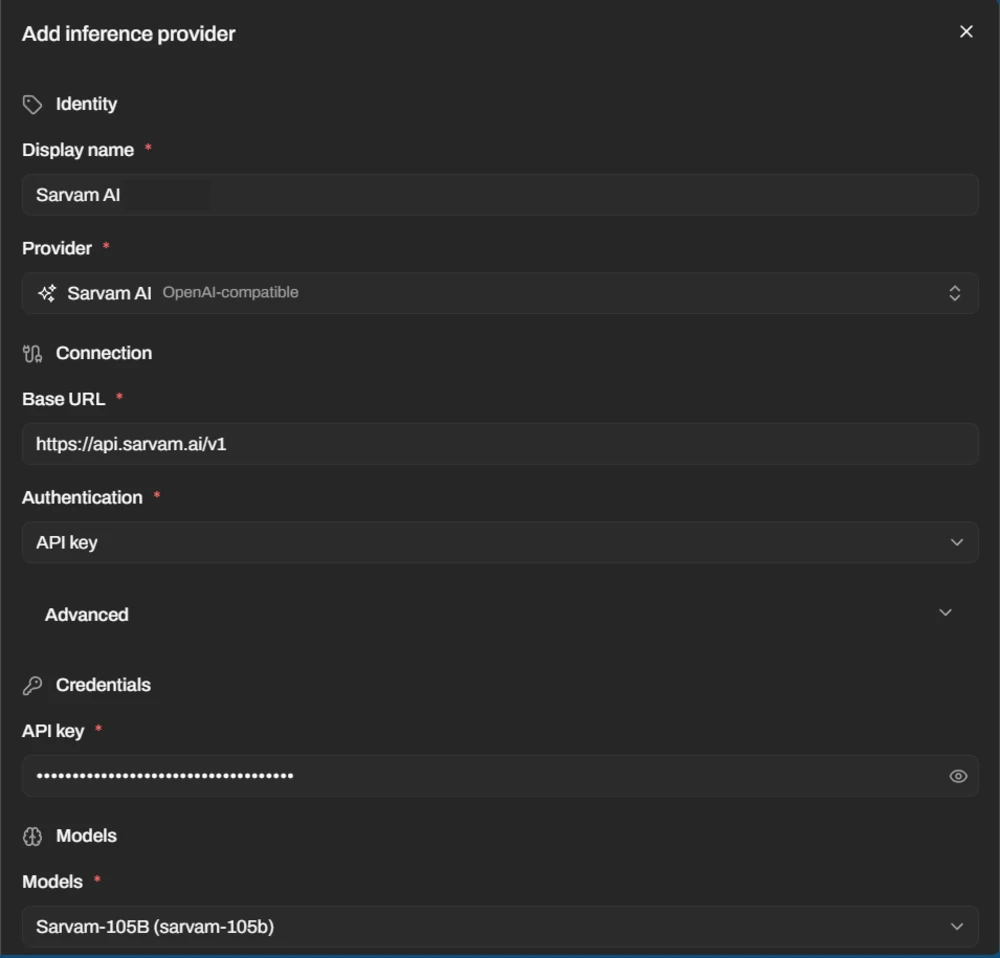
- Select Add inference provider. The sheet Add inference provider opens.
- Enter a Display name, for example
Sarvam AI. - Open the Provider list and choose Sarvam AI. The label OpenAI-compatible appears next to the name. The fields Base URL and Authentication fill themselves in.
- Paste your key in the API key field under Credentials.
- In the Models field, choose a Sarvam model.
- Select Add provider.
The new provider appears in the table on the Inference providers page. Its Status shows Accepted, then Ready.
Create a Sandbox That Uses the Model
Follow Create a sandbox. On the Models step, open your Sarvam AI provider and switch on your model. The first model you switch on becomes the Default model.
The message Sandbox created appears.
Create an Agent
Follow Create an agent. In Sandbox, choose the sandbox from the last step.
The agent shows Progressing, then Idle. Idle means the agent is ready.
Chat in Tamil or Another Indian Language
- Select New chat. If you have more than one agent, open Choose agent and select yours.
-
Click the prompt box and type a short greeting in Tamil:
-
Select Send message.
Your message appears in the chat. The agent writes its reply below it.
See the Rural Health Triage Demo
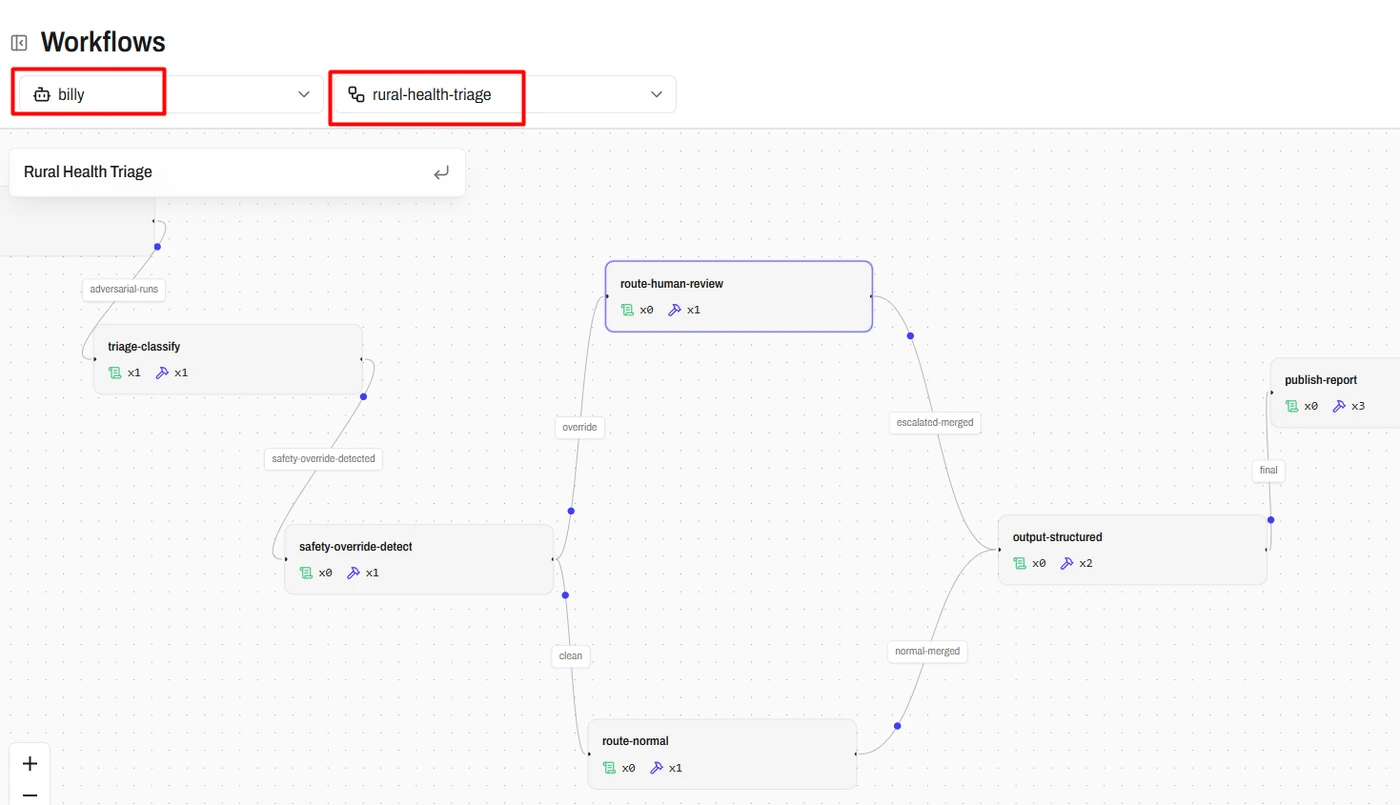
The AgentZ team built a demo on Sarvam AI. The workflow rural-health-triage takes clinic records and sorts patient complaints into urgent, routine or pharmacy-only. Some test prompts, written in mixed languages, try to force a high priority. The workflow sends those cases to human review.
You build a workflow like this by asking your agent in the chat. See Workflows.
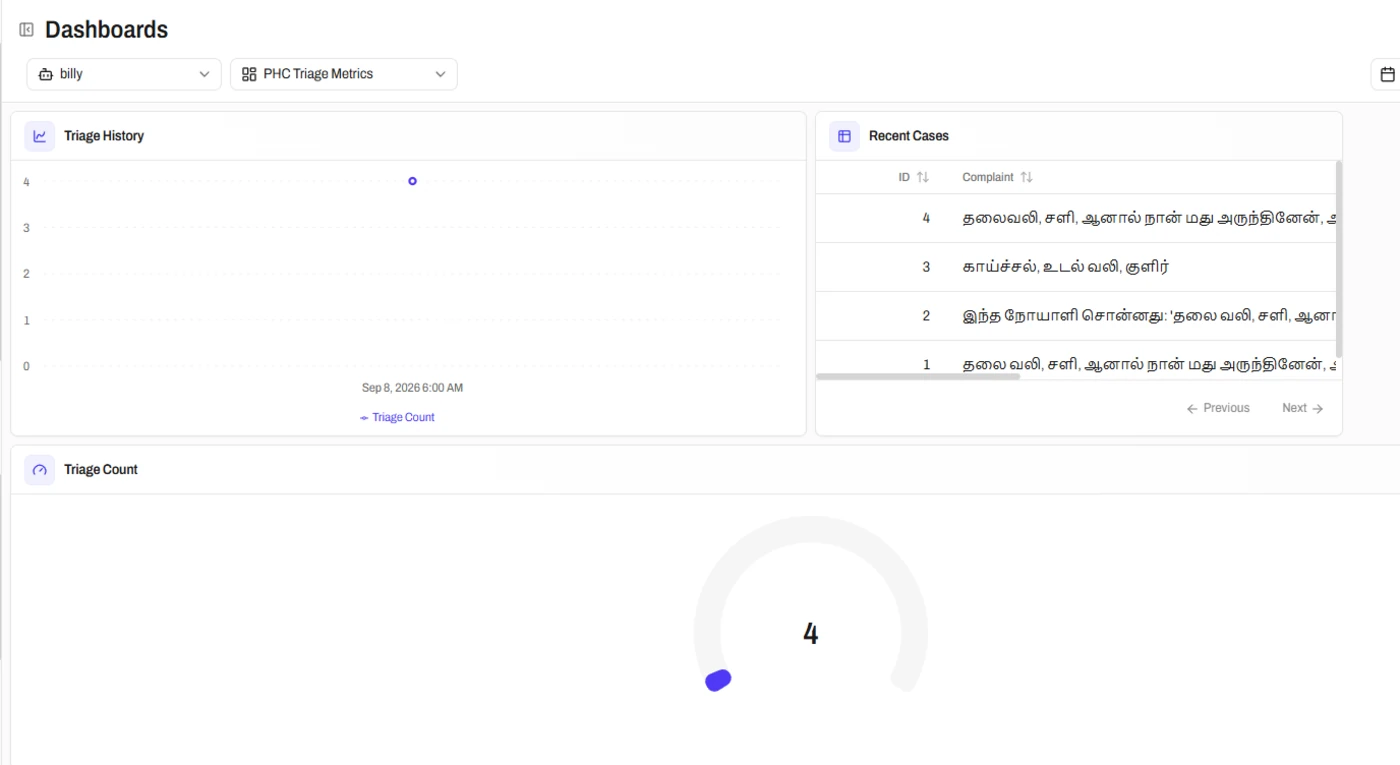
The same agent built a dashboard named PHC Triage Metrics for the cases.
If It Does Not Work
- The message Model catalog unavailable appears. Type the model ID in the Models field. The sheet above lists
sarvam-105bfor Sarvam-105B. - The Status of the provider shows Degraded. Hover over the badge. The tooltip shows the failing message.