HR Application Intake
This guide rebuilds the weekly hiring workflow that the AgentZ team runs. It reads a mailbox of job applications and ends in a ranked list and six dashboards.
You need a working agent in a General purpose workspace. You also need to know how to build a workflow.
The Original Workflow Ends in Six Dashboards
HR receives application emails with PDF resumes. Each Monday the workflow reads the mailbox and parses the resumes. It scores each candidate against a rubric from the live careers page. It ranks the candidates, writes a versioned export and publishes the dashboards.
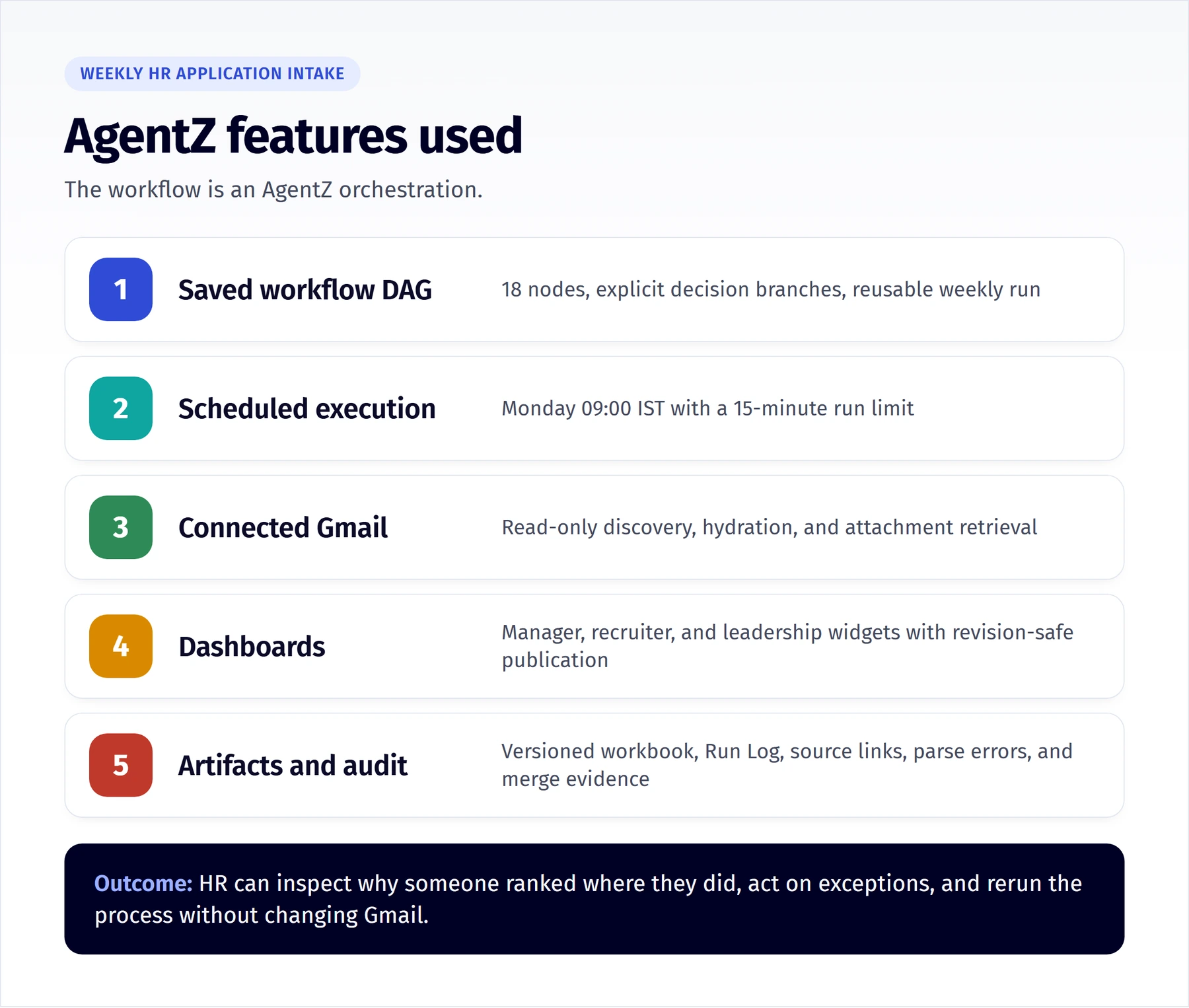
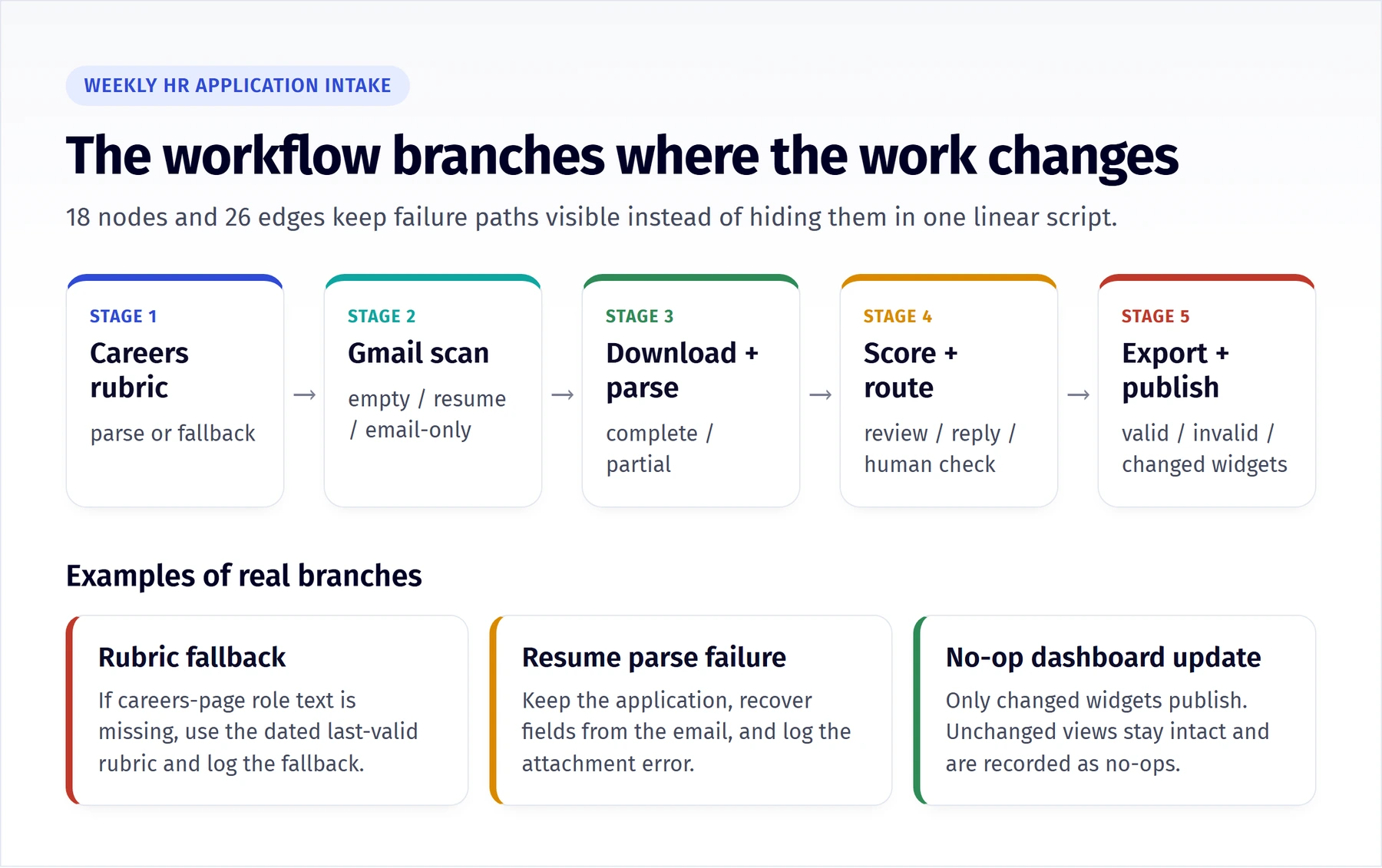
The saved workflow hr-weekly-intake has 18 nodes and 26 edges. Gmail stays read-only. Branches handle three edge cases:
- Rubric fallback. The careers page has no role text. The agent uses the dated last valid rubric and logs the fallback.
- Resume parse failure. The agent keeps the application, reads the email body and logs the attachment error.
- No-op dashboard update. The agent publishes only the widgets that changed.
Rebuild the Workflow With Your Own Mailbox
- Choose a Gmail mailbox. Send a few test application emails with PDF resumes to it. Use made-up candidates.
- Select Workspace settings, then MCP connections, then Add MCP connection. Enter a Name such as
composio. In MCP connection endpoint, search for Composio and pick it. Select Add connection. Finish the sign-in popup with the Google account that owns the mailbox. Wait until Status shows Ready. See MCP connections. - Select Workspace settings, then Sandboxes. Open the row menu of the sandbox your agent uses and select Edit.
- On the MCP step, switch on the Composio connection and its tools. On the Allowed hosts step, add
www.accuknox.com, the host of the careers page in the prompt below. Select Update sandbox. Wait until the agent status returns to Idle. -
Open a chat with the agent. Send this prompt. It reads the careers page at
https://www.accuknox.com/careers. Change the URL to your own careers page if you use another:Build a workflow named hr-weekly-intake. Read the application emails from the connected Gmail mailbox for the prior seven complete UTC days. Keep Gmail read-only. Fetch the current roles from https://www.accuknox.com/careers and build a scoring rubric. If the page has no role text, use the last valid rubric and log the fallback. Parse each PDF resume. If a parse fails, keep the application and use the email body. Score and rank the candidates. Write a versioned export. Publish dashboards for leadership, recruiters and each hiring manager, and publish only the widgets that changed. Run the task once by hand first, then save the workflow. -
Select Workflows and pick
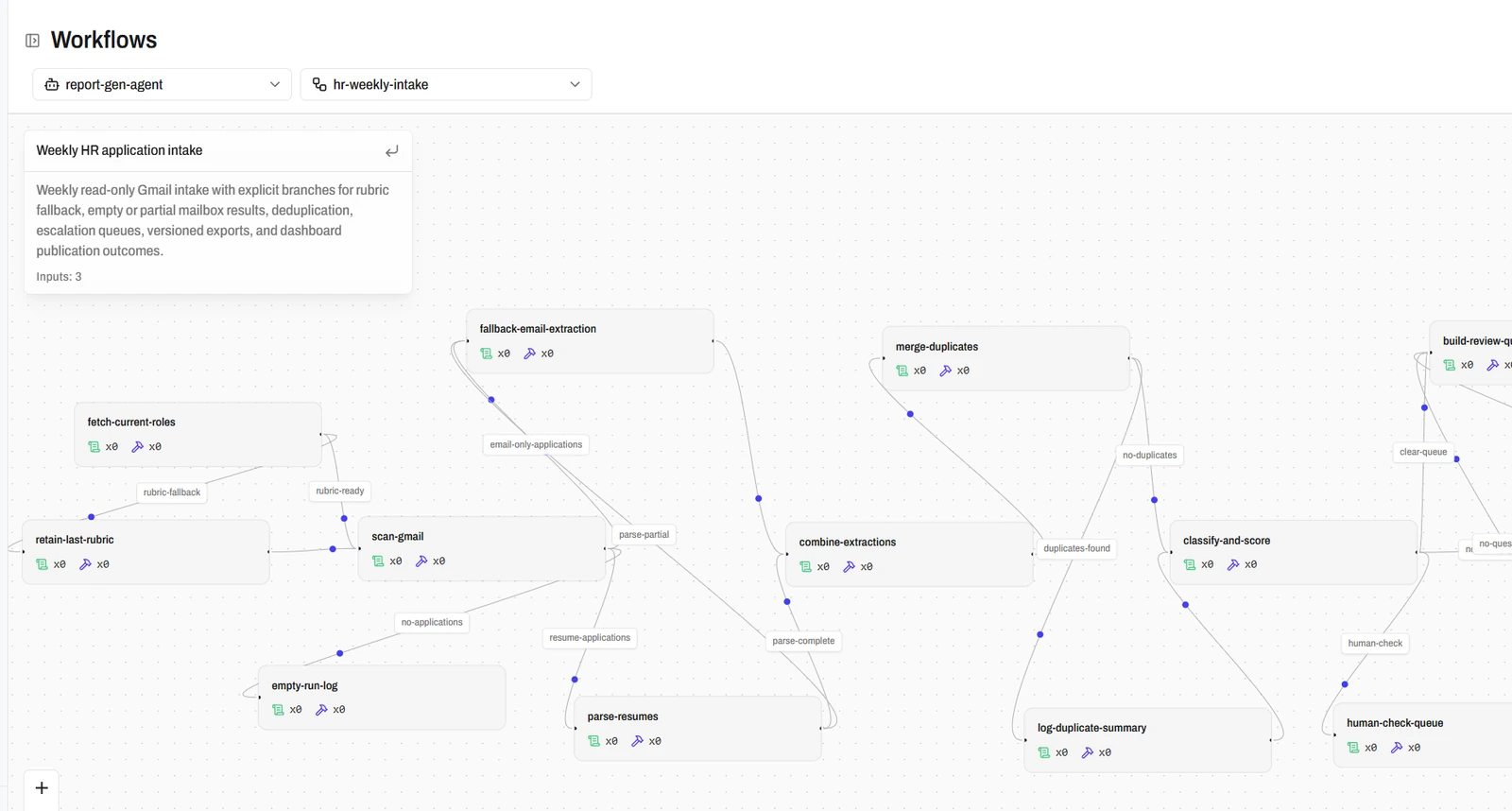
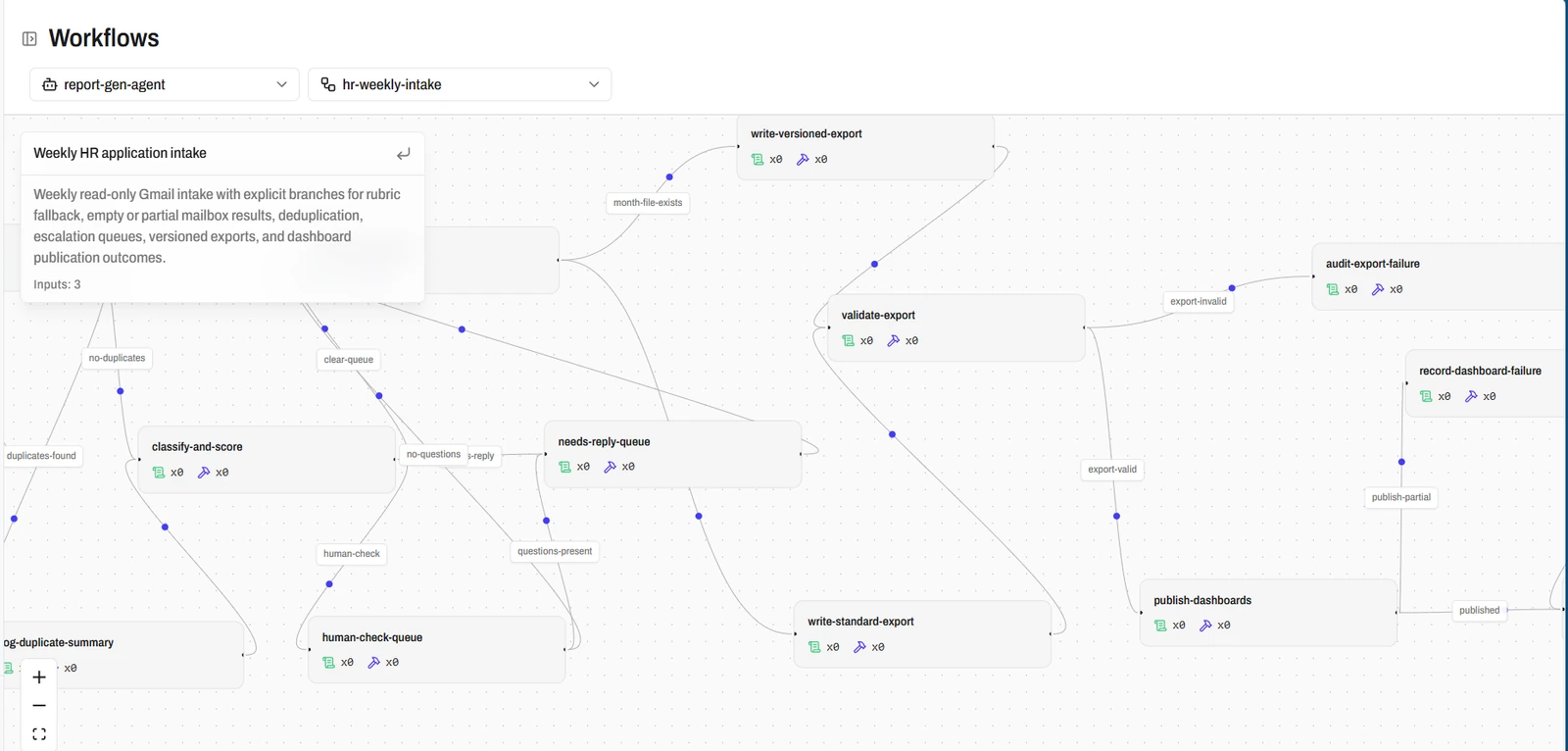
hr-weekly-intake. The graph shows the stages and the branch labels. Your graph differs from the original.
- Select Triggers, then New schedule. Fill in the fields from the table. Fill in any input fields the sheet shows. Select Create schedule.
| Field | Value |
|---|---|
| Name | hr-weekly-intake |
| Workflow name | hr-weekly-intake |
| Schedule | 30 3 * * 1 |
| Time zone | UTC |
| Timeout seconds | 900 |
The schedule starts a run at 03:30 UTC every Monday, which is 09:00 IST. The run stops after 900 seconds. See Schedules.
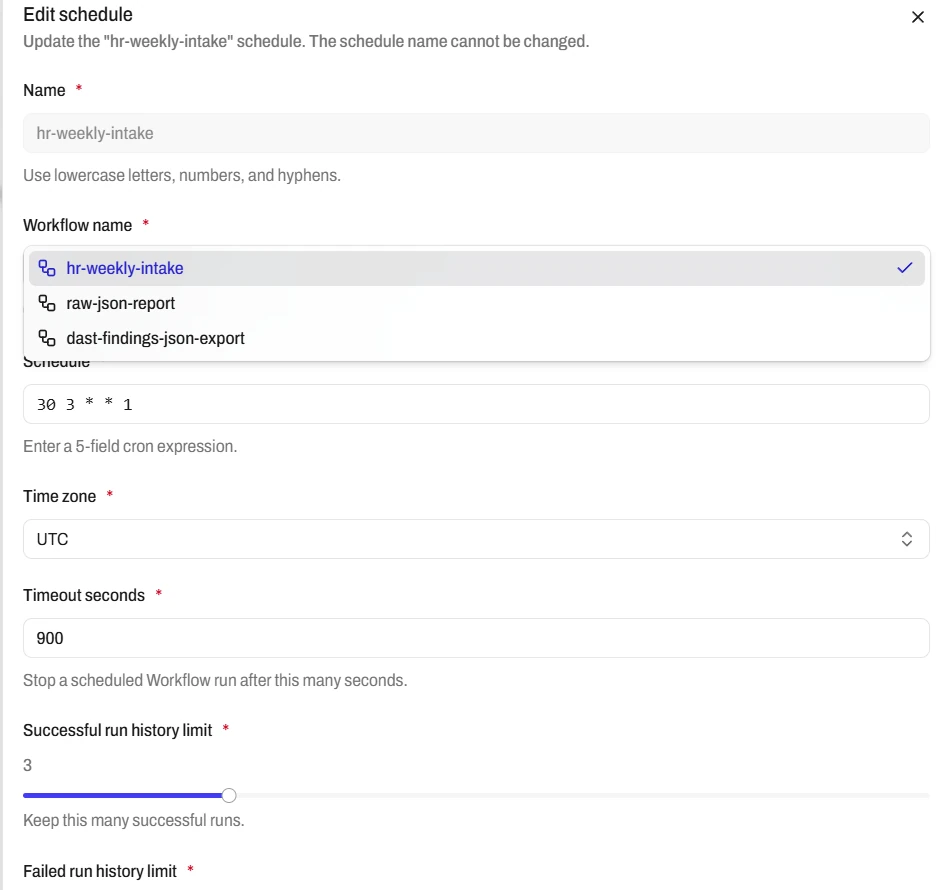
- Click the row menu of the schedule, select Run and select Run again. Workflow runs opens with the new run.
You can also ask the agent in chat to run the workflow.
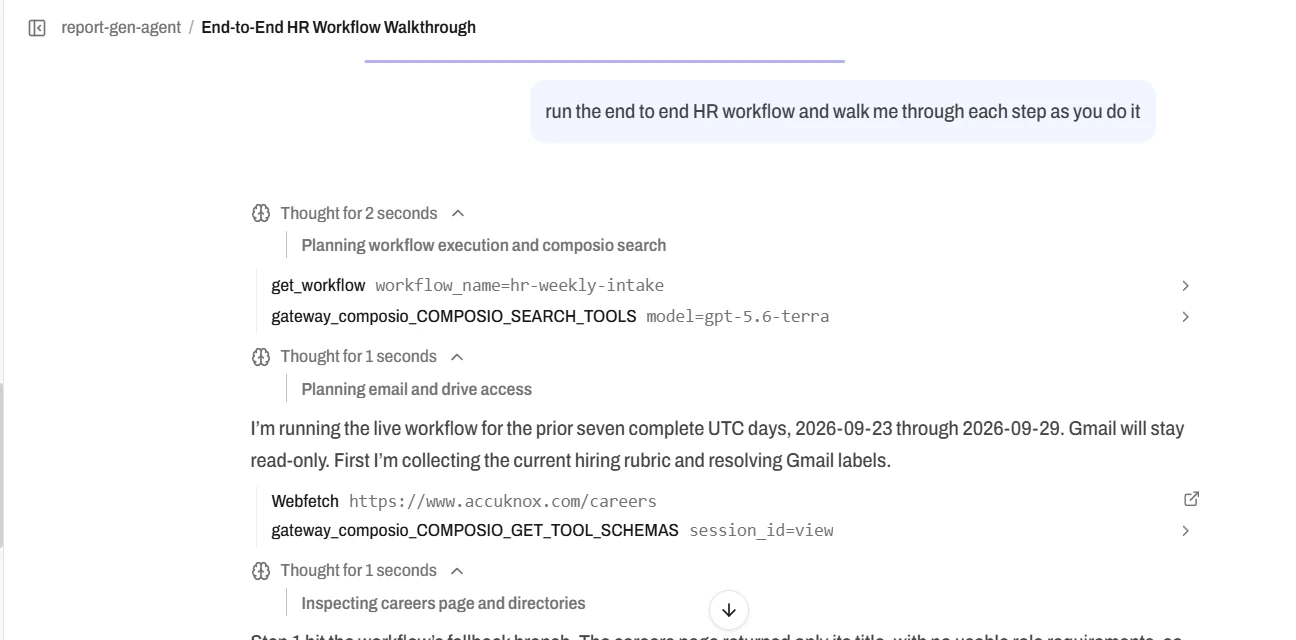
Read the Results in the Agent Files and the Dashboards
The original run kept a versioned export, a run log, source links, parse errors and merge evidence. Your prompt asks for the versioned export, so look for it in the agent files.
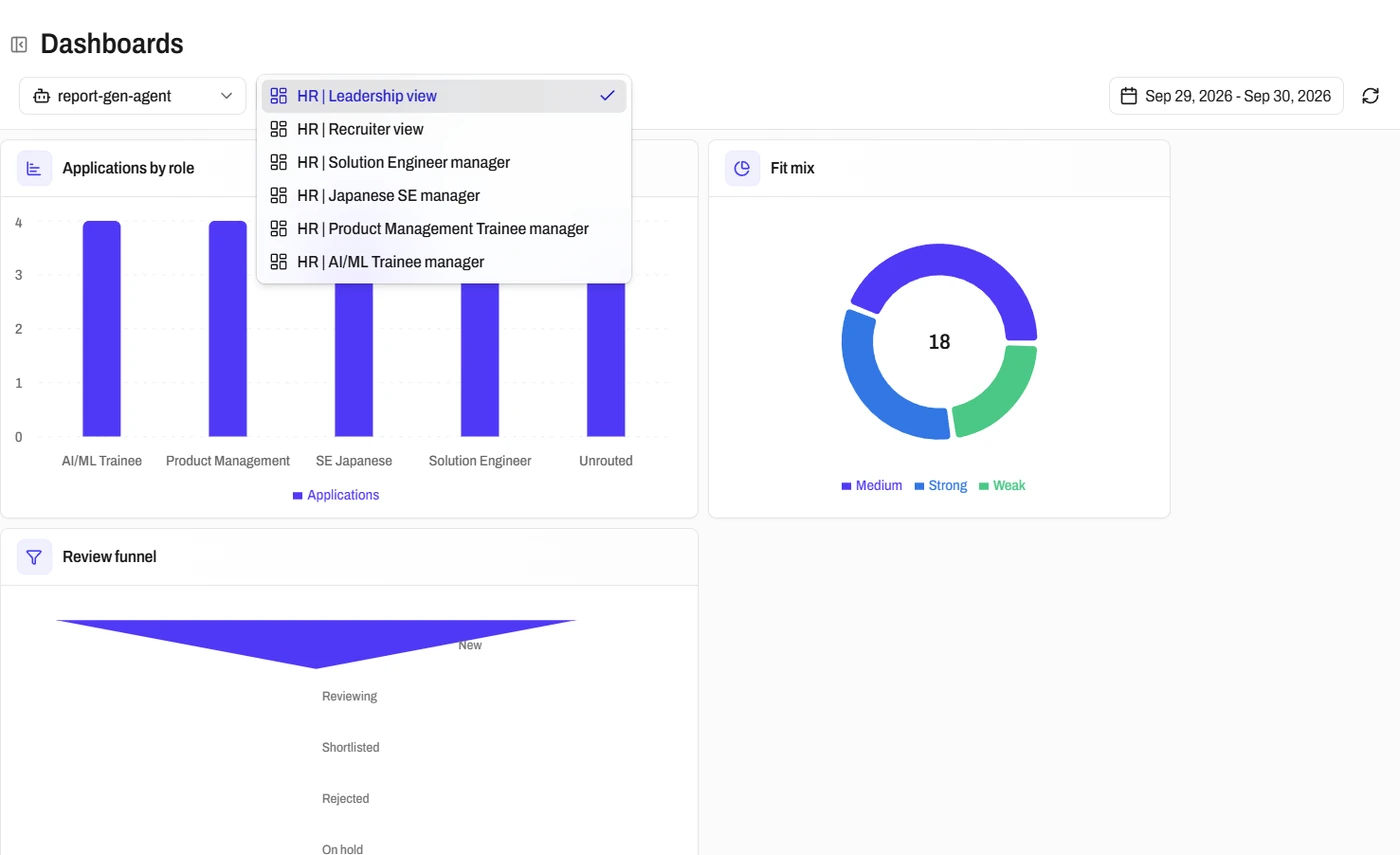
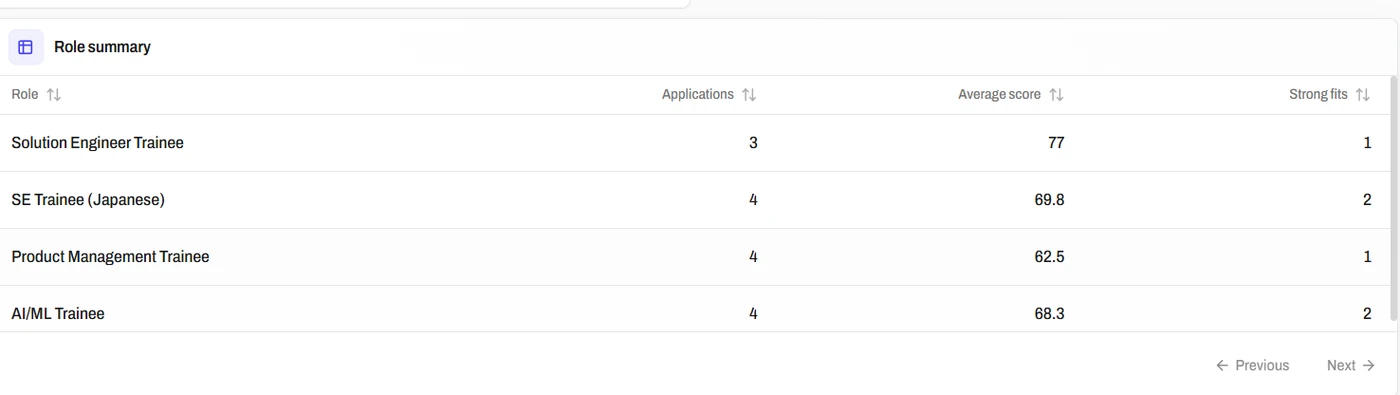
Select Dashboards and pick the agent. The original run built six dashboards: a leadership view, a recruiter view and four hiring manager views. See Dashboards.
Next Step
Continue with Add a custom tool.