Add a Custom Tool
A custom tool turns a script into a tool that your agent can call. This guide builds check_weather from a Bash script. The agent sends a city name and the script returns the current weather.
You need a working agent. See Send your first chat message.
Allow the Weather Host in the Sandbox
The script runs in the agent container. The network policy of the agent allows the hosts on the allowed list of its sandbox, plus the AgentZ services. The script calls wttr.in, so you add that host first.
- In the workspace sidebar, select Workspace settings, then Sandboxes. Open the row menu of the sandbox your agent uses and select Edit. The Update sandbox page opens.
- Select Next until you reach the Allowed hosts step. Type
wttr.inin Host and select Add allowed host. - Select Update sandbox. The message "Sandbox updated" appears.
- Wait until the agent status changes from Progressing to Idle.
The jq and curl packages are in the Required package set of a sandbox. The script uses both.
Write the Script
Save this script as check_weather.sh on your computer.
#!/usr/bin/env bash

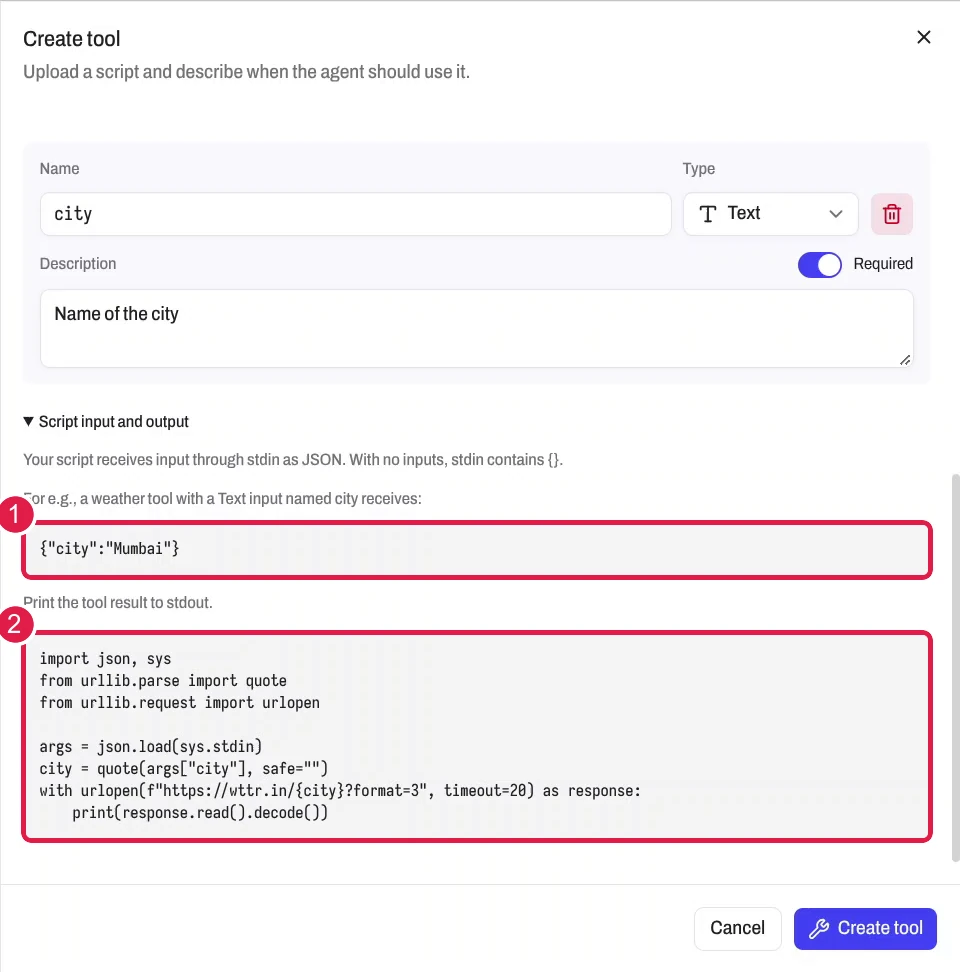
city=$(jq -r '.city | @uri')
curl --fail --silent --show-error --max-time 20 "https://wttr.in/$city?format=3"
The agent sends the inputs to the script on stdin as JSON. For the input city, the script receives {"city":"Mumbai"}. The jq command reads the city and URL-encodes it. The script prints the result to stdout, and the agent gets that output back. A non-zero exit code returns an error to the agent.
Create the Tool
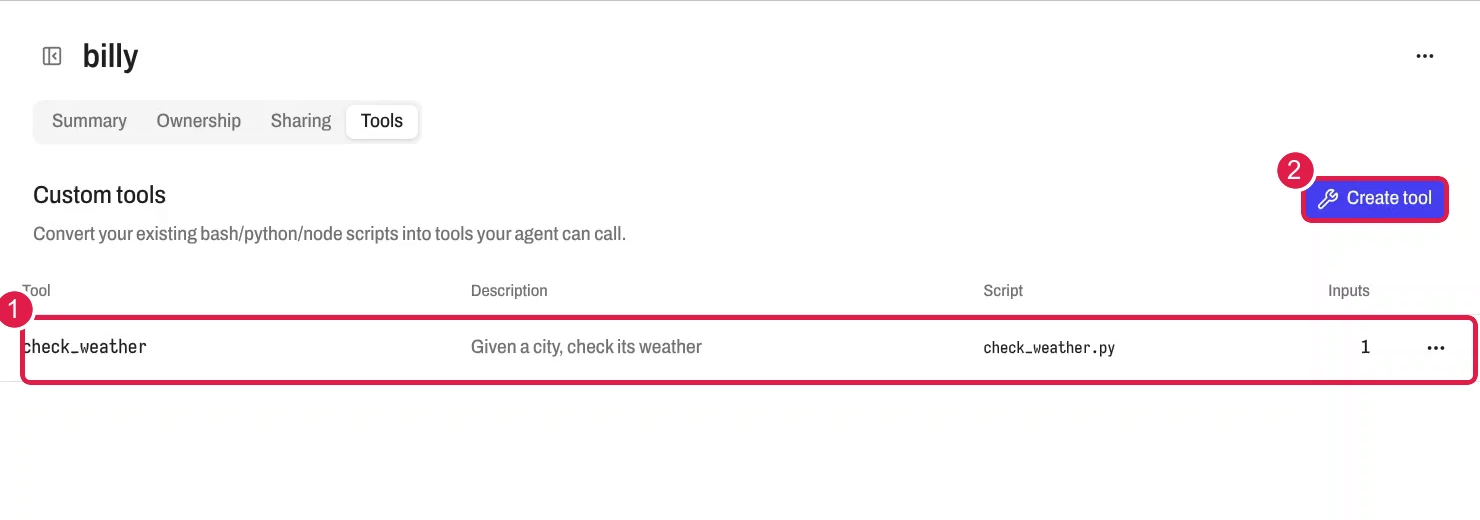
- Select Agents and open your agent. Open the Tools tab. The heading Custom tools appears.
- Select Create tool. The Create tool sheet opens.
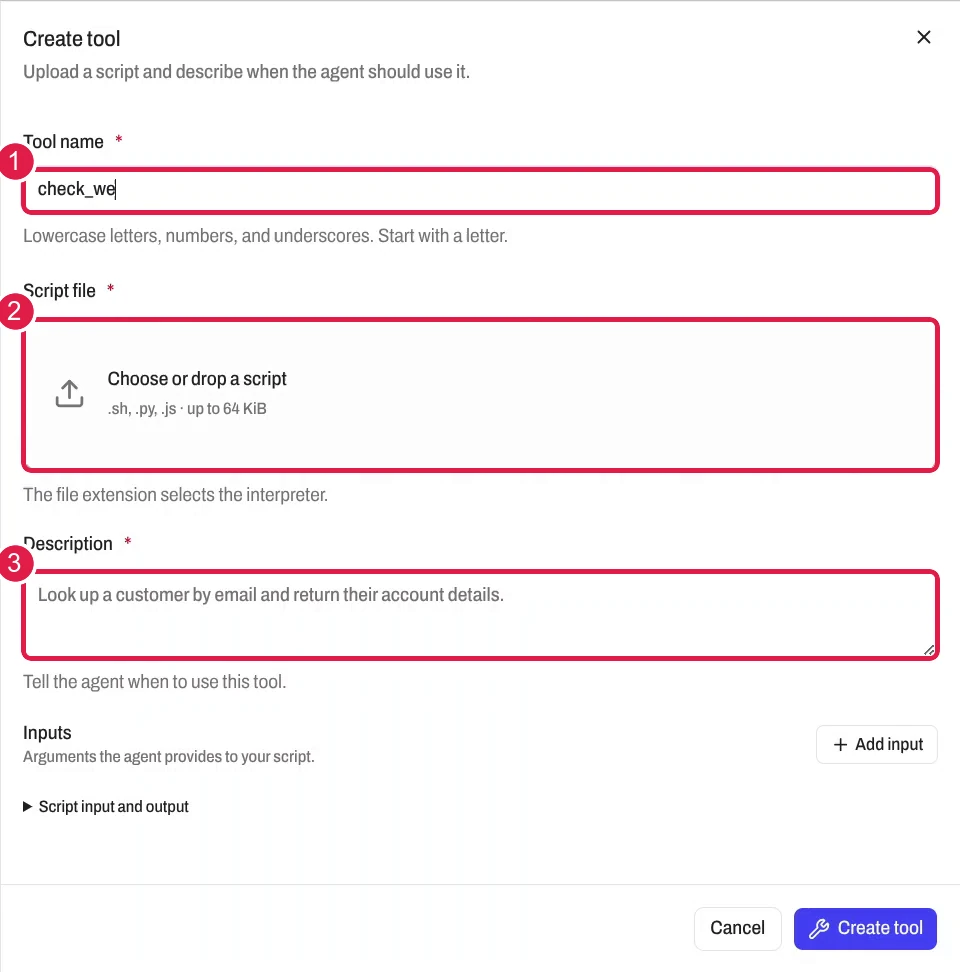
- Enter
check_weatherin Tool name. - Select Script file and choose
check_weather.sh. The sheet shows Bash. - Enter
Get the current weather for a city.in Description. This text tells the agent when to use the tool.
- Select Add input. Enter the name
city, set Type to Text and enter the descriptionThe city to look up.Turn on Required.
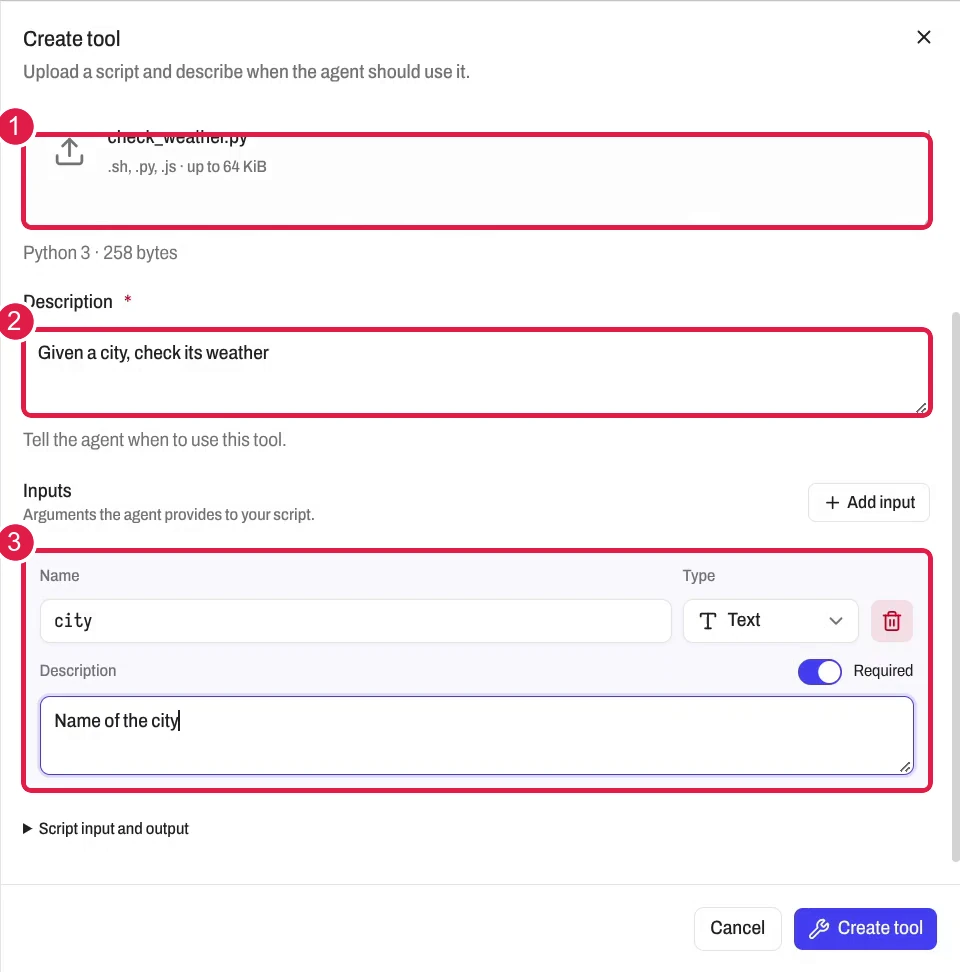
- Select Create tool. The message "Tool uploaded" appears.
The Applying tools banner shows while the agent restarts with the new tool. The tool then appears in the Custom tools list with its description, script name and input count.
Call the Tool in Chat
- Select New chat and choose your agent.
- Send
Check weather in Mumbai. The agent callscheck_weatherwithcity=Mumbai.
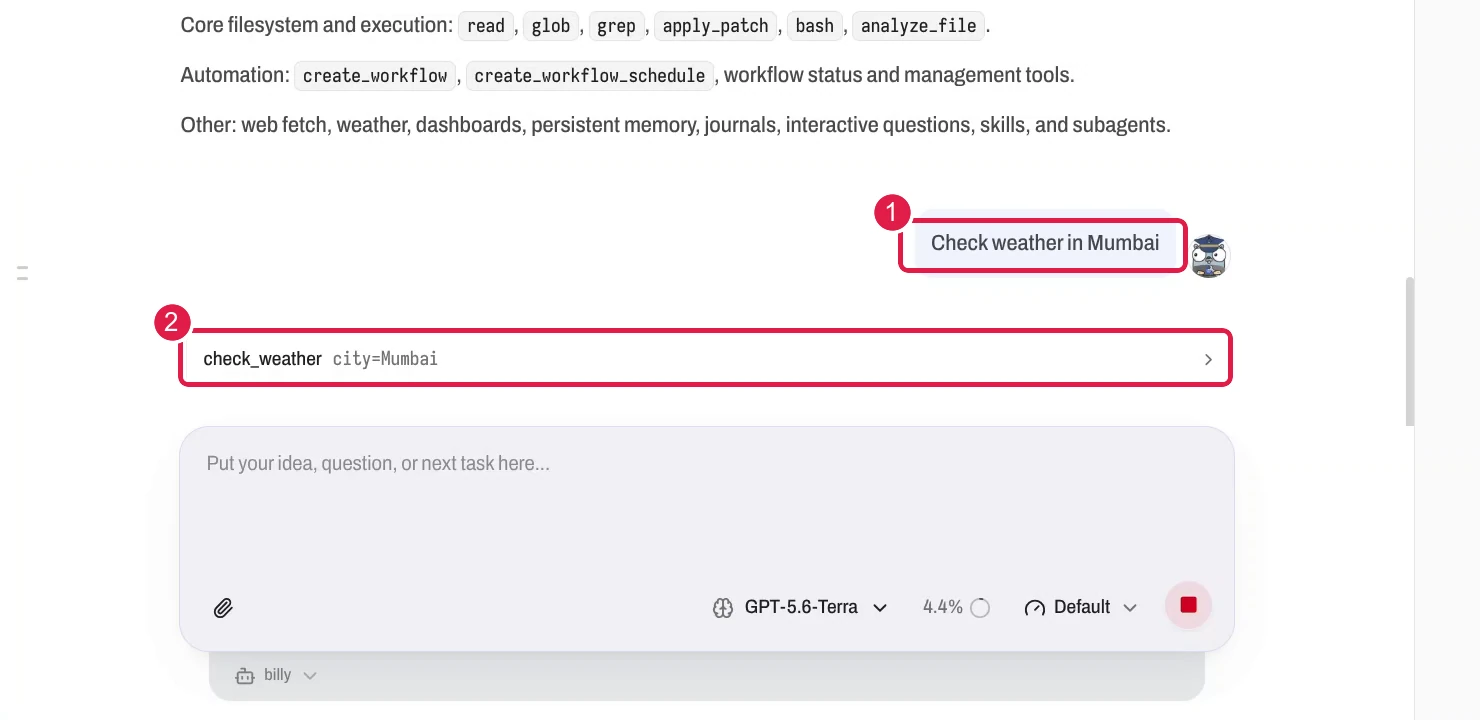
- Read the reply. It holds one line with the weather for Mumbai.
Warning
The agent runs a custom tool without asking you first. Write scripts that do only what the tool needs.
Read the Call in Lens
- In the workspace sidebar, select Lens, then Traces. Lens shows what your agents did.
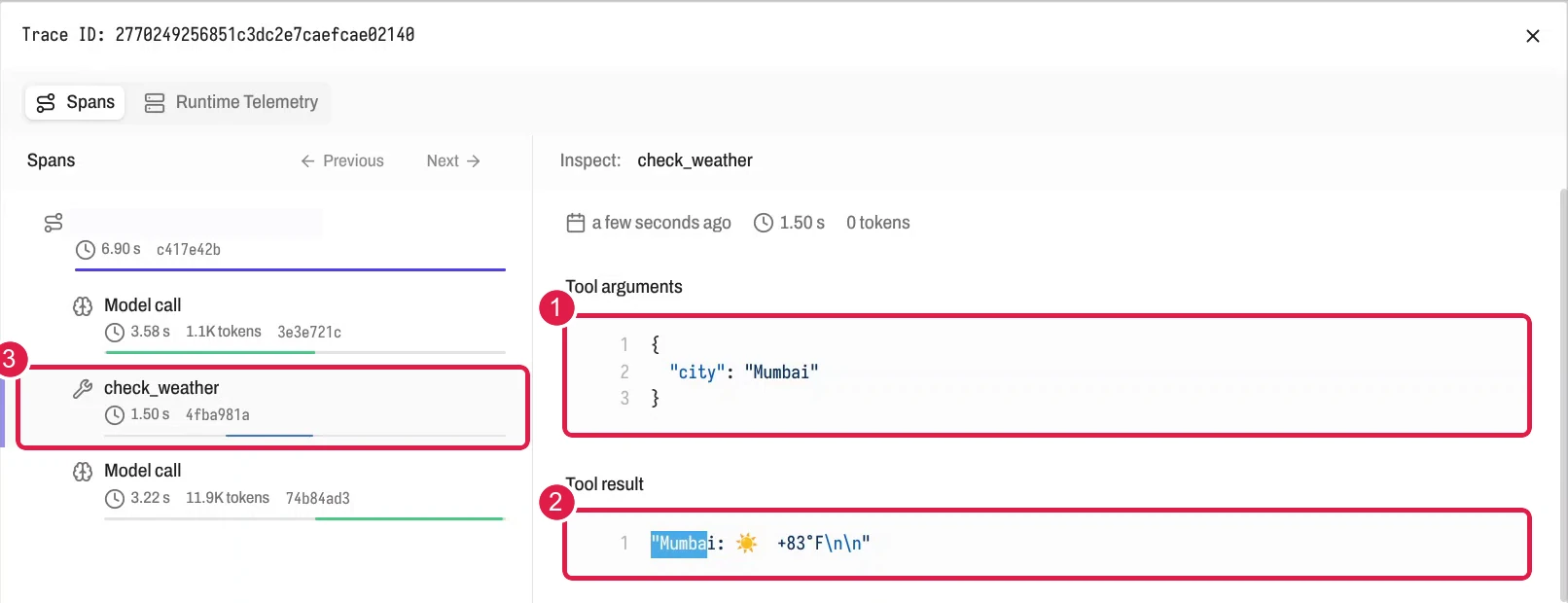
- Open the trace for your chat. Click the span of the
check_weathercall. The panels Tool arguments and Tool result show the call.
The arguments show what the agent sent. The result shows what your script returned.
Next Step
Continue with Users and invitations.