Inference Providers
An inference provider is the AI model service that your agents use, such as OpenAI or your own server. Add one before you create a sandbox, because a sandbox picks its models from your providers. AgentZ does not pass your provider credentials to the agent. For the shortest path, follow Add a model.
Choose Organization or Workspace Scope
Add a provider at the organization level to share it. Open Inference providers in the organization sidebar.
Add a provider at the workspace level to keep it in one workspace. Open Workspace settings → Inference → Inference providers.
A workspace sees an organization provider only if it is selected as an inherited resource for that workspace. An inherited provider is read-only. See Organizations and workspaces.
Add a Provider in Six Steps
- Open the Inference providers page and select Add inference provider. The Add inference provider sheet opens.
- Enter a Display name, for example
Production OpenAI. - In Provider, search for your provider and pick it. Its kind appears next to the name.
- Fill in the fields for that kind. The table below lists them.
- Under Models, pick the models or type a model ID. If you see Model catalog unavailable, type the IDs by hand.
- Select Add provider. The status shows Accepted, then Ready.
If the status shows Degraded, hover over the badge. The tooltip shows the failing message. The kind cannot change after you create the provider.
Each Kind Asks for Different Fields
| Kind | Fields |
|---|---|
| OpenAI, Anthropic, Google Gemini | API key. Optional Base URL override under Advanced. |
| Google Vertex AI | Project, Region, Service account JSON. |
| Amazon Bedrock | Region, then AWS access keys (Access key, Secret key, optional Session token) or Bedrock API key. |
| Microsoft Azure | Resource type (Azure OpenAI or Azure AI Foundry), Resource name, API version, then API key or Service principal. Foundry also asks for Foundry project. |
| OpenAI Codex | No API key. Select Connect, enter the one-time code on the sign-in page, then pick models. |
Custom Endpoints Use a Compatible Kind
Sarvam AI is a built-in choice. AgentZ fills in its URL and authentication, so you paste only your key and pick a model.
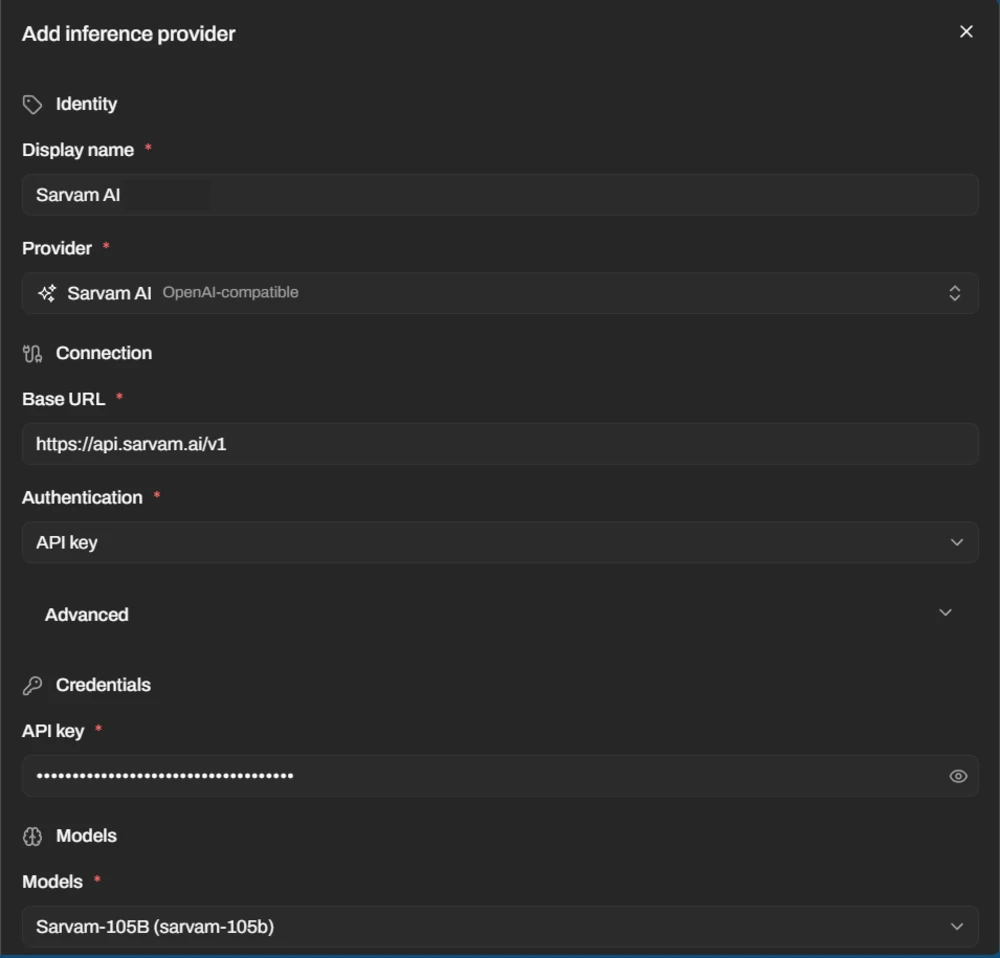
For a model server that the list does not name, pick OpenAI-compatible or Anthropic-compatible. A self-hosted server such as vLLM fits here.
- Enter the Base URL of the server.
- Choose Authentication: API key or No authentication. For API key, enter the key.
- Type each model ID in Models.
Under Advanced, you can set Path or Path prefix (not both), Authentication header, Authentication prefix and Static headers. The header defaults to authorization.
Allow private endpoints lets the URL resolve to a private IP address. Skip TLS verification disables certificate checks for this provider.
Pick Model Roles in the Sandbox
A provider does not set model roles. You set them in the Models step of the sandbox wizard, after you pick models.
| Role | Use |
|---|---|
| Default model | Required. New sessions and workflow runs use it. |
| Attachment model | Optional. It reads images and scanned PDF pages. |
| Small model | Optional. A lower-cost model for light background tasks. |
Each role model must be one of the models you selected for that sandbox.
Pools Route One Model Name Through Several Models
A pool routes one model name through an ordered list of models. Pools exist only in a workspace. Open Workspace settings → Inference → Pools and select New pool. With Automatic failover on, new requests move to the next model if the active one keeps failing. A sandbox can select a pool in its Models step.