Schedules
A schedule runs a saved workflow at times you set with a cron expression. A schedule is one kind of trigger. A trigger starts a workflow run. The other kind is a webhook.
The agent needs a workflow first. Ask the agent in chat to create one. The New schedule button stays disabled until the agent has one.
Create a Schedule
- Select Triggers in the workspace sidebar.
- Pick the agent in Agent. Leave Type on Schedule.
- Select New schedule. The New schedule sheet opens.
- Fill in the fields from the table below.
- Select Create schedule. The message "Schedule created" appears and the schedule joins the table.
| Field | What to enter |
|---|---|
| Name | Lowercase letters, numbers and hyphens, for example nightly-triage. You cannot change it later. |
| Workflow name | The saved workflow to run. |
| Schedule | A 5-field cron expression, for example 0 3 * * 1. |
| Time zone | An IANA time zone. The default is UTC. |
| Timeout seconds | 1 to 604,800. The default is 3,600. The run stops after this time. |
| Successful run history limit | 1 to 10. The default is 3. AgentZ keeps this many successful runs. |
| Failed run history limit | 1 to 10. The default is 3. AgentZ keeps this many failed runs. |
| Inputs | One field per workflow input, or an Arbitrary JSON box. The sheet shows "No runtime inputs" when the workflow has none. |
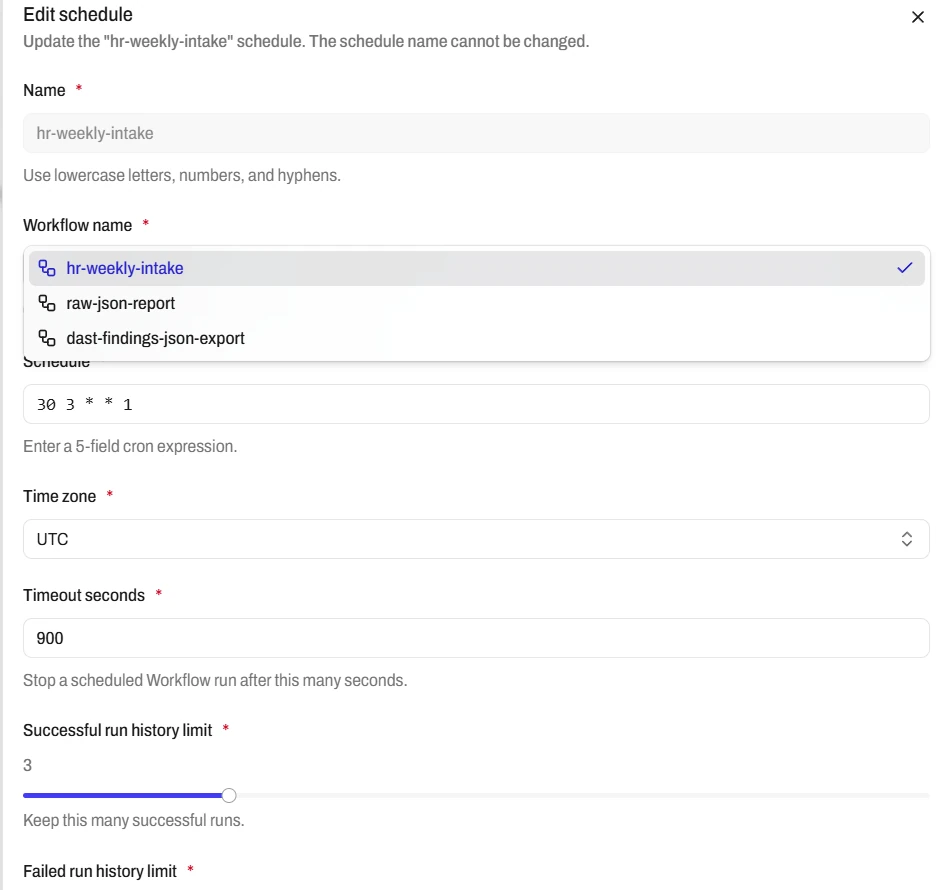
A Cron Expression Has Five Fields
The five fields are minute, hour, day of month, month and day of week. A * means any value.
This expression means minute 30, hour 3, any day of the month, any month, and Monday (1). The Time zone field sets the zone of the expression.
With the time zone UTC, the schedule starts a run at 03:30 UTC every Monday. India Standard Time (IST) is UTC+5:30. Add 5 hours 30 minutes to 03:30 and the run starts at 09:00 IST every Monday.
Run Now Starts a Schedule at Once
Run on a saved schedule is the only manual run in the web app.
- Click the row menu at the end of the schedule row.
- Select Run. A dialog asks you to confirm that you want to run the schedule now.
- Select Run. The message "Workflow started" appears and the Workflow runs page opens.
The run uses the saved configuration. Select Edit in the row menu to change it first.
Run History Lists Recent Runs
Click a schedule row to open Workflow runs. The table has the columns Run, Workflow, Status, Elapsed, Max time and Age. The history limits decide how many runs stay in the list.
Click a run to open its graph with the status of each node. The run menu also has Open session and Delete. See Workflows for the run states.
Tip
You can also ask the agent in chat to create, change or delete a schedule.
Next Step
Continue with Webhooks.