Users and Invitations
A Superadmin invites a person by creating a one-time link on the Users page. A Superadmin is the built-in all-access role. See Roles and teams. The person opens the link, signs in, and joins the organization with the access you chose.
AgentZ does not send invitation emails. You copy the link and send it yourself.
Create an Invitation Link
Before you invite anyone who is not an admin, create a custom role or a team. See Roles and teams.
The organization sidebar is the menu on the Workspaces page, outside any workspace. It lists Workspaces, Users, Teams, Roles and more.
- In the organization sidebar, select Users. The Users page opens.
- Select Create invitation.
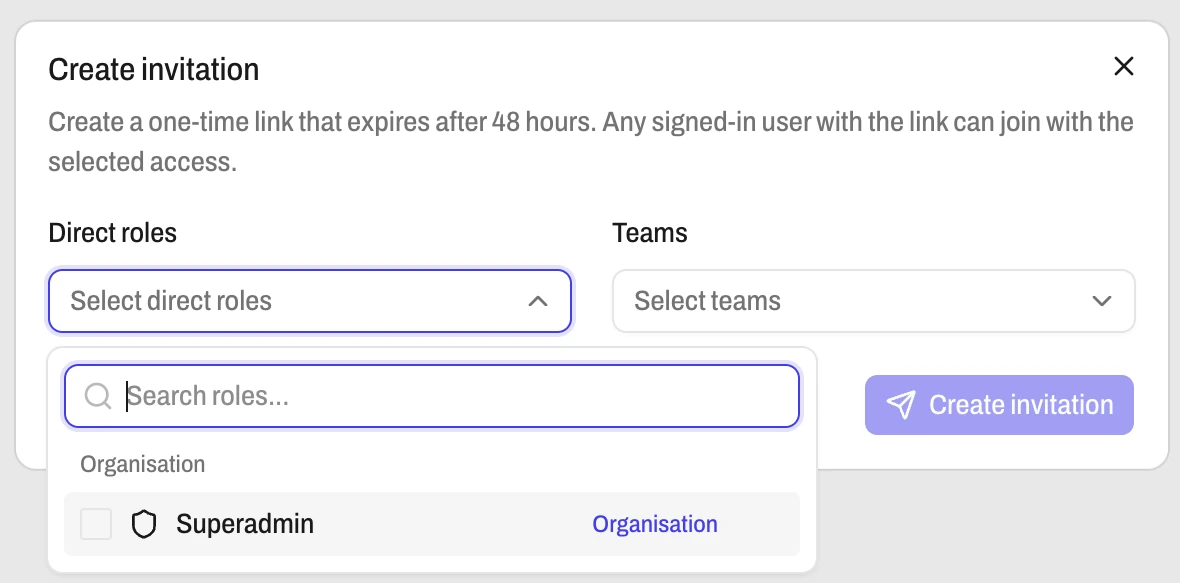
- In Direct roles, select one or more roles. In Teams, select one or more teams.
- Select Create invitation in the dialog. The dialog title changes to Invitation created.
- Select Copy. Send the link to the person.
Warning
The dialog says "Copy this link now. For security, it cannot be shown again." Copy the link before you close the dialog.
An invitation needs at least one role or one team. The link works once and expires after 48 hours. Any signed-in user with the link can join with the access you selected.
Create a Custom Role Before You Invite Members
AgentZ ships no default Member or Viewer role, so you build the role that a new member gets.
When the Direct roles list holds one role, a note under it links to the role editor. Create the role there. Then create the invitation again.
Accept an Invitation
- Open the link. If you are not signed in, AgentZ sends you to the sign-in page first. Sign in with GitHub or Google.
- The page shows Join followed by the organization name. Select that button.
- The organization opens.
The page shows This invitation is no longer available when the link expired, was cancelled, or was already used. Ask the admin for a new link.
The page shows Your membership is disabled when an admin disabled your membership. The admin must restore it before you can rejoin.
Manage Members on the Users Page
The Users page has three tabs.
| Tab | What it shows |
|---|---|
| Active | Members who can sign in and use the organization |
| Invited | Links that no one has accepted yet |
| Disabled | Members whose access an admin revoked |
To cancel an unused link, open the row menu on the Invited tab and select Cancel.
To revoke access, open the member from the Active tab. Under Membership actions, select Disable Membership. To bring the member back, open the row menu on the Disabled tab and select Restore.
To end the membership for good, select Remove Membership from the same Membership actions list. The last active Superadmin cannot be disabled or removed.
An organization holds up to 100 members.
Let People Join Through Google or GitHub
Social admission is an organization page. It lets people join with a Google or GitHub account that matches your rules.
- Select Social admission in the organization sidebar.
- Turn on Enable Social Sign Up.
- Select at least one default role or team under Default access. Create the role or team first.
- Under External rules, turn on Google or GitHub. Add an email domain for Google, or a GitHub organization (and an optional team) for GitHub.
- Select Save admission policy. The toast says Sign-up settings updated.
New members share the Join link shown on the page. AgentZ checks the rules once, when the person first joins. Invitation links ignore these rules.
Next Step
Continue with Roles and teams.